Changelog
What's new in Parsley Template Editor
October 18, 2026
One API format: .apiext
An element's API (its bindings, their types and directions, what's required, which combinations are allowed) now lives in one place: its .apiext. Everything else is written from that file or falls back to something older.
- The component editor's API tab edits the
.apiext. A component that doesn't have one yet gets a Generate API button, not an empty editor. - Generate API writes the
.apiextfrom the component's class: a binding for every key a parent can set, with its type, and the push direction too when the component synchronizes its bindings. It works on standalone templates as well as.wofolders, reports what it did, and never touches a binding the file already has. - A hand-written
.apicarries over. A component's first.apiextstarts from its.api: bindings,defaultspresets, required and must-be-settable bindings, and the validation rules, as typed constraints. Of wonder-slim's 107.apifiles, 106 convert completely. A rule with no.apiextform stops the conversion and is named, rather than being dropped. - WebObjects tools keep their
.api. Saving the.apiextof a WebObjects element writes the.apibeside it: bindings, presets, and validation rules for required bindings, settable ones and the constraints, with the messages the editor shows. ng elements get none, since ng-objects doesn't read.api. - ng's own element definitions come from ng. ng 0.1.6 ships its elements'
.apiextfiles alongside its components, the way WebObjects keeps.apifiles inResources/, and the editor reads them there. The copies the editor used to bundle are gone, so docs and bindings always match the ng version a project uses.
The old .api form editor is gone. An element with only an .api still validates and completes from it, so nothing has to be converted before it works.
A dev server that's there after every start
- Restarting Eclipse on macOS no longer leaves the dev server dead. After a restart (File → Restart, or the restart Eclipse offers after installing updates), requests to the dev server hung for the whole session. The macOS launcher starts the new Eclipse from the old one's process, and the new one inherited a port nothing listened on. The dev server now shuts down with Eclipse.
- A port that's still taken at startup is tried again for a minute, so an Eclipse that was quit just before doesn't leave the new one without a dev server. A server that can't start frees its port and logs why.
- Template problems are right from the first build. While Maven was still resolving classpaths at startup, ng projects could be validated without their tag aliases, and errors like "the class for 'script' is either missing" stayed until a file changed. Templates are now re-validated when a project's classpath changes.
- No more "Duplicate located" dialogs. Two classes with the same name in one project (legal Java, in different packages) opened an error dialog on every lookup, which also blocked agents. That now goes to the log, once, and the dev server explains the ambiguity instead of failing.
Smaller things
- New ng-objects projects use ng 0.1.6; WebObjects projects keep wonder-slim 8.1.2.
October 14, 2026
Route links, understood
wonder-slim 8.1.0 brings routing, and templates link to routes by name: <wo:route to="$routes.book" :book="$book">. The editor now knows these links as well as it knows any other binding.
- Route names complete after
$routes., and a misspelled one is an error with a did you mean and a quick fix. The constants a template reaches throughRouteKeys.of( Routes.class )are resolved like any other key, hop by hop, and/keypathshows them. - Typing
:offers the route's parameters, read from your source, with no running app needed: a typed route's record components, or the{placeholders}of the pattern a plain route is mapped under, including those of the groups it's mapped in. Parameters the link already binds aren't offered again. - Route links validate clean. A
routes()method inherited from an interface is a key like any other,:idis a route parameter rather than an attribute in an unknown namespace (the formatter keeps its colon), and binding a component to a private field no longer gets a false "can't be set" warning: values are pushed back the way key-value coding does it.
Launching without stepping on anyone
Development apps share a port, and the app on it is often one somebody else is working on: the developer, or another agent. /launch no longer stops it. Your app runs on the next free port instead, and the answer says which, listing the app that holds the dev port with how long ago it was last worked on (lastTouchedSeconds, also in /status). Taking the port is the developer's call: stopOthers=true, which stops the holder and kills it if it won't stop.
A launch also stops waiting on apps that will never come up. An app whose JVM has died is reported dead at once, even when Eclipse's debugger hasn't noticed yet. An app that neither opens its port nor prints anything for 15 seconds is reported as stalled, with the last lines it printed and its thread state, instead of being waited out.
When an app is started outside the dev server, say from Eclipse's Run button, and finds its port taken, ng-objects and wonder-slim now handle it the same way, through one shared stopper: whatever ng or WebObjects app holds the port is asked to stop, and killed if it hangs. A process that isn't an ng or WebObjects app is never touched.
Smaller things
/refreshProjectcatches a second edit to the same file within a second of the first. Eclipse saw no change and compiled nothing, while the call answeredok.- New WebObjects projects reference wonder-slim 8.0.17, where a component created while the app runs is found without a restart.
/quickfix's create action generates code that compiles, a component name that several open projects have is refused instead of resolved against the first one, and keypaths of$true,$falseand$nullno longer make a project-wide rename skip a template.
October 2, 2026
Ask the editor, don't reconstruct
The editor knows what a component takes, what a keypath resolves to at every hop, where a key is declared and everywhere it's used. Until now an agent rebuilt all of that from Java files and grep. The dev server now answers it directly.
/contextloads everything about a component before an edit: its files, what it takes, its current problems, the elements its template uses (with their bindings) and who uses it./keypathresolvesgame.homeTeam.ratingsegment by segment, with types and declarations, and for a broken one the failing key and the validator's suggestions./findand/callerslocate a key's declaration and every use, including a model class's key reached through template keypaths. They match by resolution, not text:$team.namecounts asTeam.name, and$team.captain.namedoesn't./componentApiand/elementRegistrydescribe a project's own components and every element available to it.
Refactoring and fixes, as calls
/rename renames a component, a key (a component's, or a model class's) or a WOD element through the editor's refactorings: Java, HTML, WOD and every call site in one step, with a preview, and undoable from Eclipse's Edit menu. /quickfix applies the fixes Cmd+1 offers on a template problem: replace a misspelled key, or create the missing key or action.
No more silent hangs
Apps run under Eclipse's debugger, and by default it stops a thread that reaches code that didn't compile, or an uncaught exception, without a word. To an agent that's a request that never answers. Apps launched through the dev server now fail fast instead, and /threads shows anything that is stopped, where and why. /restart builds before it stops anything, so a broken build leaves the running app up rather than taking it down. A launch is only reported ready once the app has survived its startup: an app that fails in its constructor used to look ready for a moment.
Validation that catches what used to fail at render
- Binding a component that synchronizes its bindings to a keypath with no setter is flagged. The value gets pushed back after rendering, and that fails.
- KVC operators such as
@counton ajava.utilcollection are an error: in WebObjects they only work on anNSArray. - Components that read their bindings with
valueForBinding("…")have those bindings offered in completion, and renamed along with the key. - An element's documentation comes from the element that actually runs. For example,
<wo:str>is described by wonder-slim'sERXWOString, which formatsjava.timevalues. - A component class that moved to another package is no longer reported missing.
- The definitions of WebObjects' own elements were checked against WebObjects 5.4.3 itself.
Smaller things
- Every dev-server endpoint says no the same way:
errorwhen the call is wrong,reason(often with ahint, the call that fixes it) when it was fine but nothing happened. No moreokfor requests nothing was done for. /wheretells an agent whether its directory is one Eclipse sees. Edits in a git worktree are invisible to Eclipse, and the developer can't follow them.- New WebObjects projects start with
MainextendingERXComponent, and the templates reference wonder-slim 8.0.16 and vermilingua 1.1.11.
September 25, 2026
Hybrid projects: every template knows its runtime
A WebObjects application can serve ng-objects components alongside its own — a hybrid project, with WebObjects templates and ng templates side by side. The editor used to judge every template by the project's type, so in a WebObjects project an ng component's template was checked as WebObjects: ng-only tags like <wo:script> were unknown, and ng elements such as AjaxUpdateLink were reported missing.
Now each template has its own runtime, decided the way ng-objects finds its components: a template under ng/<namespace>/components/ (or anywhere in an ng project) is an ng template, everything else is WebObjects. Validation, completion, hover and the Element Reference follow it — <wo:str> is NGString in the ng page and WOString in the WebObjects page next to it, each checked against the element it really is.
Smaller things
- ng projects read their tag names from
ng-tag-aliases.properties, ng-objects' renamed registry — the rename keeps a classpath with both frameworks from mixing the two vocabularies. - The dev server's
/elementApitakesruntime=ng|wofor hybrid projects, anddebug=trueshows exactly how an element's class was looked up;/validatefinds components of either runtime. - The new-project templates reference vermilingua 1.1.10.
September 19, 2026
From nothing to a running app
An agent could already edit, build, launch and observe a project through the dev server — but it couldn't begin one. New projects were written to disk and then imported into Eclipse by hand. That last manual step is gone: /createProject generates a project from the bundled templates (ng-objects-app, wonder-slim-app, or a new plain maven library for supporting logic), imports it through m2e, waits for the workspace to settle, reports compile errors, gives an application a launch configuration — and with launch=true starts it. One call, a few seconds, and there is a running app in Eclipse ready for the edit loop, hot code replacement included. /importProject does the same for a project that already exists on disk. Both refuse rather than overwrite anything.
One dev port, decided out loud
Development apps share a port by convention, so starting one while another runs used to end with the frameworks quietly stopping the earlier app — which an agent only ever saw as an app mysteriously dying. /launch now decides it explicitly: a held port is a refusal that names the holder, stopOthers=true takes the port, and port=1201 runs alongside instead — the argument is injected into an unsaved copy of the launch configuration, so yours is never edited. When an app does get stopped by a second instance, /console now says so instead of showing a clean log and an unexplained exit code.
ng-objects elements, described by ng-objects
In ng-objects projects the editor used to borrow its knowledge of each element from the WebObjects element of the same name — right often enough to be convincing, wrong wherever the two differ. ng-objects now declares its own tag names and ships its own element definitions, and the editor reads those: completion offers ng's tags and nothing from the WebObjects world, bindings validate against the real contract (<wo:checkbox> has checked, not WebObjects' value/selection pair), and binding completion and validation finally agree with each other. Projects on an ng-objects release that predates these files get the same definitions from a copy bundled with the editor.
Smaller things
/validatesays why a component wasn't found — closed project, unknown project, or no such component — and/problemssays why a project's list is empty.- A launch is no longer refused for compile errors that vanish a moment later: the preflight waits for Maven's classpath work after a project is opened.
- Apps launched through the dev server get their console in Eclipse even in a freshly started session.
/openProject?project=allis gone; opening a project brings its workspace dependencies along, which is the useful thing.- The new-project templates reference wonder-slim 8.0.4 and vermilingua 1.1.7.
August 29, 2026
The dev server grows up
A summer of work on the built-in dev server (localhost:9485) — the HTTP surface that lets external tools and AI agents drive Eclipse. It now reports what actually happened, not just that a command was relayed: /status (what's running, per launch config), /console (a launch's output, kept after the process dies), /launch with preflight refusals and waitForPort, /restart, /openProject (a project plus its workspace dependencies), /problems, /breakpoints, and a self-describing index at /. /refreshProject returns a build report instead of ok when the build produced errors.
Ask the editor what a tag can do
/elementApi returns any element's resolved binding API as JSON — types, direction, required, defaults, cross-binding rules with their plain-English messages — the editor's hover, as data. Validation also gained a check for the $-on-a-plain-tag trap. Paired with runtime-side eval and problems endpoints in ng-objects and wonder-slim.
Trustworthy markers
Revalidate All Templates (a preference-page button and /revalidate) re-runs template validation over a project or the whole workspace, and Purge Stale Markers (/purgeMarkers) deletes orphaned markers left by validators that no longer exist. /problems labels every marker with its source. Along the way: the standalone JS/CSS editors and their ancient validation engines are gone (Eclipse owns those files; inline blocks in templates keep highlighting and completion), and the plugin's embedded libraries were brought current.
Watch your agent work, live
The dev server records every request it handles, and /watch turns that into a live, narrated feed (“Validated Main — clean”, “Launched MyApp — ready in 4.2s”) with a running tally. /activity serves the same record as JSON — an audit trail of what an agent actually did to your workspace.
Launches that can't stop the world
Eclipse's “Errors exist in required project(s). Proceed?” dialog can no longer strand an agent: /launch checks the app and every project it depends on, refuses with the broken projects and the fix, and launches with Eclipse's prompting switched off. For every other modal, /dialogs lists them and can press a button — and a launch that's waiting for the app returns at once if one appears.
July 4, 2026
Every standard WebObjects element, richly described
The template editor now ships a full .apiext description for every one of the standard WebObjects dynamic elements — all 39 of them, from WOString and WORepetition to WOForm, WOPopUpButton and the rest. Until now these built-in elements were described by the old, thin .api files, which knew a binding’s name but little else. The new descriptions are far richer, and they light up everywhere the editor already helps you.
For each element and each of its bindings you now get:
- Real documentation — a written description of what the element does and what every binding is for, shown in the hover and the Element Reference.
- Typed bindings with direction — each binding declares the Java type it accepts, and whether the element reads it (pull ↓), writes it back (push ↑), or both. So you can see at a glance that a checkbox’s
checkedreads any value by truthiness but pushes back a realBoolean. - Cross-binding rules — the “exactly one of these” and “if you bind this, you must bind that” constraints are now typed and checked, so the editor flags a mis-bound element as you write it.
- Sensible defaults and deprecations — default values are shown where they exist, and genuinely obsolete elements (
WOApplet,WOVBScript,WOQuickTime…) are marked deprecated and struck through in the Element Reference, so it’s obvious what not to reach for.
The descriptions are grounded in the published WebObjects element reference and the elements’ documented binding behavior, so what the editor tells you matches what the framework actually does. This is also the largest body of real .apiext yet — a solid, practical proving ground for the format as it grows toward a full tag library.
July 1, 2026
Jump to any part of a keypath
Editing a template and want to jump to the Java behind a binding? Put your cursor in a keypath and hit F3 — the same “Open Declaration” shortcut you already use in Java code. It now works in the template editor too, on element tags, binding names, and binding values, so you can navigate without reaching for the mouse.
The nice part is how it treats a keypath. Eclipse normally sees $activeUser.address.city as one thing and, on Cmd+click, jumps to the very end — the city method. But often you want a segment in the middle. Now both F3 and Cmd+click open the segment your cursor is actually on:
- On
activeUser→ opensactiveUser - On
address→ opensaddress - On
city→ openscity
And when you hold Cmd and hover, the underline now highlights just the segment you’re pointing at — so what lights up is exactly what a click will open.
June 26, 2026
One source of truth for what a tag means
Phew. I've wanted this for so long: Eclipse/the template editor and the WO runtime now share a single, declarative tag registry — so the editor and the application will interpret tags through a single mechanism.
Until now, the template editor carried its own built-in "tag shortcut" registry for tags like <wo:str> and really had no idea whether it matched what WO would actually render at runtime. It usually did — but “usually” is where subtle, maddening mismatches live. The classic example: WebObjects frameworks substitute elements at runtime. Bind a <wo:str> and ERExtensions quietly swaps in its own ERXWOString when the page renders. That substitution lived only in framework code that ran at startup — completely invisible to the editor.
Now element tags are declared by frameworks and applications. A framework or application drops a simple parsley-tag-aliases.properties file on its classpath:
str       = WOString          # a friendly shortcut
WOString  = ERXWOString       # an element replacement
A tag shortcut and an element replacement are pretty much the same thing — an alias from one name to another — so they share one mechanism. Resolution is recursive: str → WOString → ERXWOString, following the chain to whatever your app really renders. The Parsley runtime reads this file to build pages; the editor reads the very same files from your project’s classpath.
What you get, across the whole editor:
- Autocomplete offers the tags your project actually defines.
- Hover and binding completion resolve the full chain. Hovering
<wo:str>showsstr → WOString → ERXWOString— the truth of what renders.
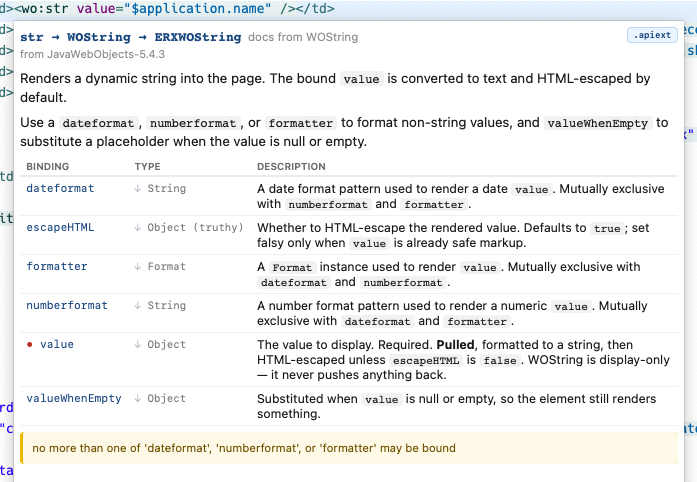
- The Element Reference marks overridden elements in orange and a dedicated “Overridden by” column, so you can see at a glance which built-in elements are replaced in your project, and with what.
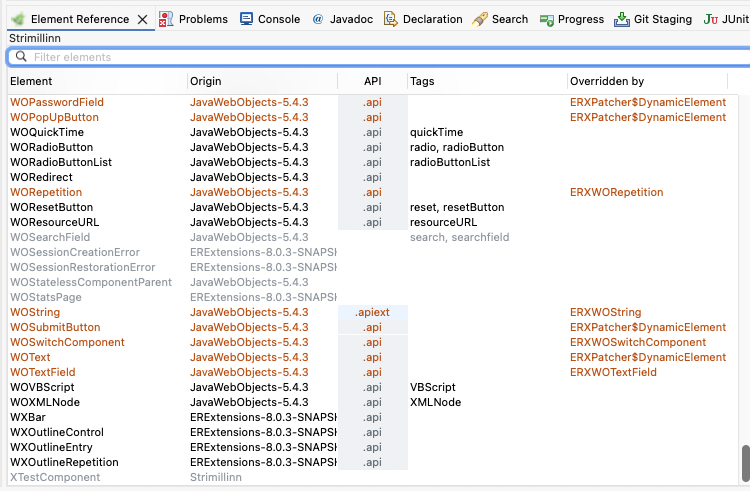
It is opt-in and per-project: a project that contains no alias files behaves exactly as before. And it’s the first step and foundation for something larger — a proper tag library, where a framework fully describes its own tags to the tooling.
June 24, 2026
Added element reference view
A new Element Reference view (Window → Show View → Parsley) lists every element available to your project — searchable, sortable, with each one’s full API documentation a click away. The Origin column shows which framework an element comes from, and a double-click opens it.
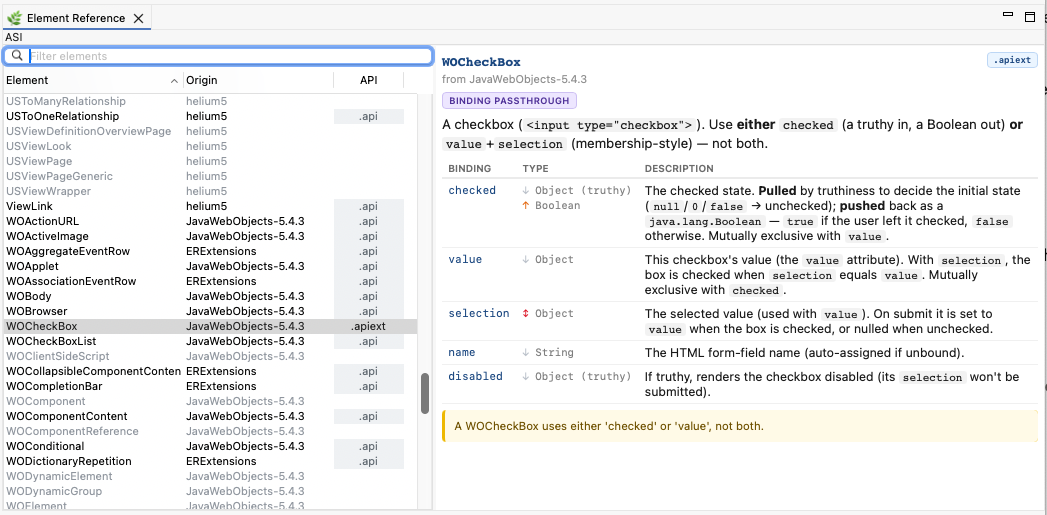
From the template editor, Cmd+Opt+9 reveals the element under your cursor in the view — without moving focus, so your editing flow isn’t interrupted.
Hide wod editor if wod is empty
When a component’s .wod file is empty — as it always is for inline-binding templates — the WOD editor no longer takes up half the editor. It collapses to a thin bar, giving the template the full height; click the bar any time you want the WOD editor back.
June 23, 2026
Detailed element documentation on hover
Hovering a <wo:…> tag now shows detailed information about an element’s API — some documentation, its bindings, which bindings are required, and so on.
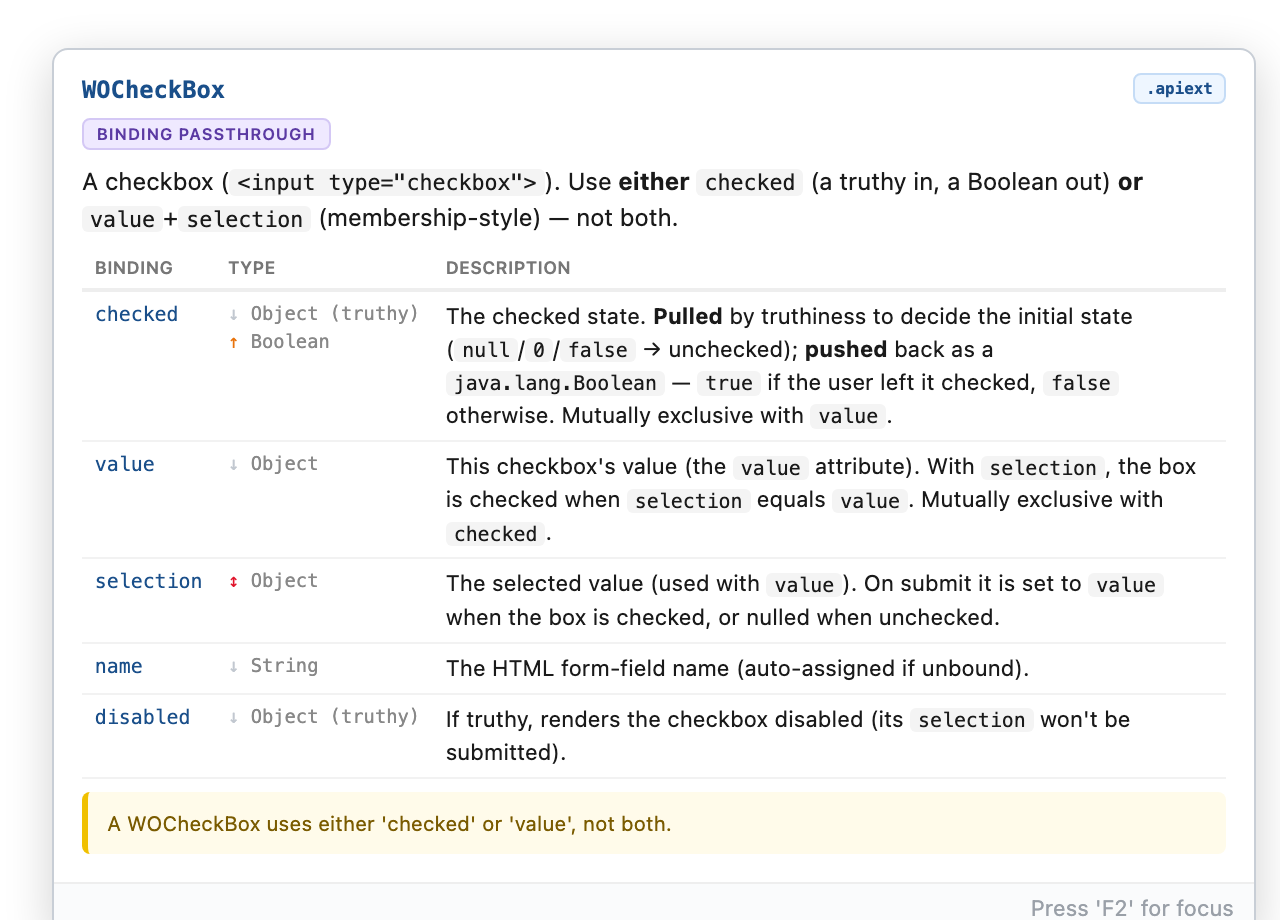
- A real description. Elements and individual bindings can carry Markdown documentation (a role summary up top, a note per binding), rendered inline — so the hover explains what a binding is for, not just its name.
- Binding direction and type. Each binding shows whether the element reads it (a grey “pull”), writes it back (an orange “push”), or both (a red two-way), along with the accepted Java type. When a binding reads one type and writes another — like a checkbox that reads any value by truthiness but writes back a
Boolean— the two are shown separately. - Status badges. Container elements and binding-passthrough elements are flagged with a badge in the header, and a small marker shows whether the documentation came from a project’s own definition or a richer bundled one.
- Read it comfortably. The popup opens at a generous size, scrolls when an element has a lot of bindings, and stays open when you move into it so you can select and copy text.
This richer documentation is driven by an experimental .apiext format. The editor uses it when a parsable definition is available (today for a small set of built-in elements and for AjaxSlim’s components) and falls back to the classic definition otherwise — so existing projects keep working unchanged while the format settles.
June 5, 2026
A full dev loop for AI-assisted work on a running app
Building on /refreshProject, the dev server gained a handful of endpoints that together let an external tool — most usefully an AI coding assistant working in your repo — drive the whole edit→build→run loop on a live WebObjects/Parsley application, without you relaying anything by hand. Everything is localhost-only, with no setup.
- Validate a template without rendering it —
/validate?component=NAMEruns Parsley’s template validator on a component and returns the problems (line, position, message) as JSON. Templates are long, error-prone strings whose mistakes usually don’t surface until the page renders; now they can be caught up front. (Eclipse’s own validation is editor-driven, so a plain refresh never checked templates — this fills that gap.) - Read the running app’s console over HTTP — the app (via wonder-slim’s ERExtensions, in development) serves its recent log at
…/App.woa/log, withcontains=andtail=filters. No more copy-pasting the Eclipse console to share what the app printed. - Discover what’s running — apps announce themselves at startup, so
/appslists each running app, its port, and which of its dependencies have source open in your workspace (with paths). A tool can find an app by name — no guessing ports — and knows which libraries it can actually read and edit versus jar-only ones. - Start and stop apps —
/launchstarts a launch configuration (listing them, and deliberately preferring a local/dev config so it never accidentally fires Production), and/stopshuts one down (cleanly, or withforce=truefor a JVM that a big hot-reload has wedged).
Why this matters. Each piece removes a manual hand-off. The result is that an assistant can launch your app, edit source and templates, validate them, refresh the running instance, read back the console to confirm, and restart when a change needs it — closing the loop end to end. There’s a short guide for setting this up with an agent in the repo’s AGENTS.md.
June 1, 2026
Dev server can now refresh & rebuild a whole project on demand
The dev server has a new endpoint — /refreshProject?project=NAME — that refreshes a project from disk and rebuilds it, all in one call. It’s the programmatic equivalent of closing and reopening the project in Eclipse: it picks up file changes made outside the Eclipse editor and recompiles them. Add &build=false to refresh without building, or omit project to refresh every open project.
Why this matters: Eclipse only notices edits it made itself. When something else changes your source on disk — a code generator, a script, or an AI coding assistant working in the repo — Eclipse doesn’t know, so your running app keeps using the old compiled classes and the change seems to do nothing. You’d normally fix that by manually closing and reopening the project. Now a single HTTP call does it.
Why this is useful. It turns out to be the missing piece for working with an AI assistant on a live WebObjects/Parsley app. The assistant edits your source, calls /refreshProject, and the running app hot-swaps the change in immediately — so it can load a page and actually see the result of what it just wrote. No build/redeploy/restart cycle in between. The loop goes from “edit, then a human babysits a rebuild” to “edit, refresh, observe” — in seconds. The same applies to any external tool that edits your project and wants the running app to reflect it.
May 29, 2026
Components now open to the HTML template by default
When you open a component, the editor now lands on the HTML template instead of the WOD editor. Opening a component is almost always about working on the template — and for inline-syntax components the WOD sidecar is usually empty — so HTML-first is the sensible default.
If you specifically open a .wod file (or .woo / .api), the editor still reveals that part — only the “no specific request” case (opening the component itself, via Open Component, double-clicking the .wo folder, or jumping in from an exception page) defaults to HTML.
Dev server now enabled by default
The dev server — which lets your running application drive Eclipse, most usefully so that clicking a stack-trace line on an exception page in the browser opens that source line in Eclipse — is now on by default and needs no setup. The feature has always existed (it came over from WOLips); it’s just far more accessible now.
What changed:
- No password. The server listens only on
localhost, which is its security boundary — anything that could reach it is already running on your machine. It previously required a shared password between the IDE and the app; that friction is gone, on both sides. - On by default. Nothing to enable. Wonder’s
ERXExceptionPage(and ng-objects’ equivalent) already generate the links, so for most projects this simply starts working. - Fails quietly on a port conflict. If port 9485 is already taken — most commonly because a second Eclipse window already owns it — the server just doesn’t start in that instance and notes it calmly in the log. The first window owns the port, which is the one your app talks to anyway.
- Configurable. Enable/disable and port live under Preferences → Parsley → Dev Server; changes apply immediately without restarting Eclipse.
May 14, 2026
Fix: $application and $session keypaths now resolve against user subclasses in NG projects
In ng-objects projects, keypaths like $application.formatters or $session.currentUser were producing false “There is no key” validation errors, even though the runtime resolves them correctly. The validator was checking the bare NGApplication / NGSession class instead of walking down to the user’s Application / Session subclass where the actual keys live.
The mechanism for “when this is the declared type, look at subclasses in the current project instead” has been in place for years for the classic WebObjects equivalents (WOApplication, WOSession, WODirectAction) — the ng-objects classes were just missing from the list. Now added: NGApplication, NGSession, NGDirectAction.
Detection is purely name-based and works regardless of which framework the project targets — the validator picks up whichever class appears in the supertype chain.
May 6, 2026
Fix: problem markers now appear on pulled-up source folders
Files with errors inside src/main/components, src/main/woresources, or any pulled-up ng-style resource folder were propagating their error markers up to the project, but the pulled-up folders themselves at the project root showed no marker — even though the error was clearly inside them. So you’d see the red error decorator on the project, then nothing on any of its visible children, with no easy way to drill down to where the error actually was.
The cause was an icon-overlay slot collision: the small “wo”/“ng” badge that marks pulled-up source folders was using the same image overlay slot as Eclipse’s standard problem-marker decorator. The badge was applied first, blocking the marker. The badge has been moved to the top-right corner of the folder icon, leaving the bottom-left slot free for the problem marker.
Fix: false validation errors on methods whose names start with an uppercase letter
Action methods and other unprefixed methods whose names start with an uppercase letter — for example HttpServerUpdateClicked() or HTTPServerUpdateClicked() — were producing false “There is no key ‘X’” errors when bound from a template, even though valueForKey("HttpServerUpdateClicked") finds the method correctly at runtime.
The editor was lowercasing the first character of every method name to derive the binding key, which produced names like hTTPServerUpdateClicked or httpServerUpdateClicked. The runtime never finds methods by those keys (literal-method lookup is case-sensitive), so the editor's “Did you mean...?” suggestion was actually pointing at a key that wouldn't have worked.
The fix follows the standard Cocoa / WebObjects KVC convention:
- For methods without a
get/set/isprefix, the binding key is the method name preserved exactly.HttpServerUpdateClicked()→ keyHttpServerUpdateClicked;title()→ keytitle. - For methods with a bean-style prefix, the prefix is stripped and the first letter is lowercased — unless the first two characters are both uppercase, which preserves acronyms.
getURL()→URL;getTitle()→title;getHttpServer()→httpServer.
The same fix applies to the rename refactoring — renaming HttpServerUpdateClicked() on a Java class now correctly updates HttpServerUpdateClicked in bound templates.
May 4, 2026
Dark mode readability and new color preference pages
Two improvements aimed at users running Eclipse in a dark theme:
Plain text now follows Eclipse’s editor theme. The HTML, embedded JavaScript, and embedded CSS scanners used to set the default text color to a hardcoded value (pure black by default), which made plain content — HTML body text, CSS selectors and braces, JavaScript identifiers — render black on a dark background and effectively disappear. These scanners now defer to Eclipse’s standard editor foreground color, which is theme-aware. In dark mode the same text shows up in light gray; in light mode it stays dark, exactly as before.
As part of this change, the “Foreground Color” field in Preferences → Parsley has been removed — it was the setting that previously hardcoded the black default and is no longer needed. To customize the editor’s default text color, use the standard Eclipse setting at Preferences → General → Editors → Text Editors → Colors and Fonts.
New “Embedded CSS” and “Embedded JavaScript” preference pages under Preferences → Parsley, exposing color settings that previously had no UI:
- Embedded CSS: Comment, Property, Value
- Embedded JavaScript: Comment, String, Keyword
If you’ve been irritated by the dark-blue CSS property color on a dark editor background, this is where to fix it.
This is a first readability pass. The remaining tag/attribute/binding colors and the <wo:> background tint are still tuned for light themes — theme-aware defaults for those are next.
April 30, 2026
Updated project template versions
The New Project wizard now generates projects using the latest released dependency versions:
- wonder-slim:
8.0.0(released, replacing the previous8.0.0.slim-SNAPSHOT; the group id is nowis.rebbi.slim) - ng-objects:
0.1.1(was0.1.0) - vermilingua-maven-plugin:
1.1.4(was1.0.5)
Existing projects are unaffected — this only impacts new projects created via the wizard.
April 12, 2026
Validate duplicate attributes
Tags with duplicate attributes — e.g. <div class="a" class="b"> — now produce a validation error. The first occurrence wins (per the HTML spec) and the duplicate is highlighted in the editor and Problems view. Detection is case-insensitive, so class and Class are correctly flagged as duplicates.
April 10, 2026
Fix: extraneous close tags are now reported
Templates with stray close tags — e.g. <div></div></div> with more closes than opens — now correctly report each dangling close tag as a validation error (“<div> start tag is not found.”) in the Problems view and inline in the editor.
This was a long-standing bug inherited from the original WOLips parser: the FuzzyXML close-tag handler had a defensive early return whenever the open-tag stack was empty, which silently swallowed the exact case the validation was meant to catch. An empty stack on a close tag is precisely an extraneous close tag.
Fix: close-tag completion after self-closing tag with parentheses in attribute
Fixed a bug where close-tag completion (Ctrl+Space) would suggest the wrong tag after a self-closing tag whose attribute value started with a delimiter character — typically a parenthesis, like <wo:str valueWhenEmpty="(empty) "/>. The scanner’s quoted-value tracking lost state when the first character inside the quote was a delimiter, which in turn broke the self-closing pop and left the tag sitting on the unclosed-tag stack. Subsequent close-tag completions would incorrectly suggest closing the stale tag.
Also affects values starting with other delimiter characters (;, +, etc.), not just (.
March 9, 2026
Find References includes template references
Eclipse’s Find References (Ctrl+Shift+G) now surfaces template references in the standard Search view, right alongside Java callers.
Binding keys: Search for references to a method like name() in your component class and the Search view shows hits from inline HTML bindings (value="$name") and WOD binding values (value = name;). KVC getter/setter prefixes are handled automatically — searching for getTitle() finds references to key title.
Element types: Search for references to a component or element class and the Search view shows every template that uses it — <wo:MyComponent> tags in HTML and : MyComponent { declarations in WOD files. The scan covers the element’s own project and all projects that depend on it, so library components show usages from consuming applications.
Double-click any match to jump straight to the reference in the template file.
March 8, 2026
WOLips coexistence preference
New setting in Preferences → Parsley → WOLips Coexistence: “Let Parsley handle all elements by default.”
By default, when WOLips is installed alongside Parsley, Parsley only activates for projects that have project.base set in their build.properties. This new preference flips that default — when enabled, Parsley handles editors, decorators, and keyboard shortcuts for all recognized WebObjects and ng-objects projects, even those without project.base.
Useful if you need WOLips installed for non-template-editing features but want Parsley to handle all template editing.
March 7, 2026
Usages tab — “Who uses this component?”
A new Usages tab in the component editor answers the question every developer eventually asks: “which other components use this one?”
Click the tab and it scans all open workspace projects for templates that reference the current component as an element — both inline <wo:ComponentName> tags in HTML and : ComponentName { declarations in WOD files. Results appear in a two-column table showing the using component’s name and its project. Double-click any row to jump straight to that component’s template.
The scan runs in the background on first tab activation, so it never blocks your editing. Hit Refresh to re-scan after making changes. Works for both standalone and bundle templates, and catches cross-project references.
Extract Wrapper
A new refactoring that is the inverse of Extract Component. Select the content that should stay in the current component, press Cmd+2, X (or Edit > Refactor > Extract Wrapper…), and enter a name. Everything around the selection — the surrounding page chrome — is extracted into a new wrapper component with <wo:content /> where the selection was. The original template becomes just the selection wrapped in the new component tag.
Typical use case: extracting a page layout (navigation, header, footer) into a reusable wrapper, leaving only the page-specific content in the original component.
Extract Component and Extract Wrapper: standalone template support
Both Extract Component (Cmd+2, E) and Extract Wrapper (Cmd+2, X) now correctly handle ng-objects projects — creating standalone .html template files instead of .wo bundles, and placing them in the correct resource folder.
March 6, 2026
Convert between template formats
Bundle → standalone: Right-click a .wo folder and select “Convert to Standalone Template” to convert it to a standalone template. The action replaces all <webobject name="X"> tags with their inline equivalents (<wo:Type binding="value">) using the WOD definitions, moves the HTML file out of the .wo folder, and deletes it. Supports multi-selection and recursive conversion of entire folder trees.
Standalone → bundle: Right-click a standalone .html template and select “Convert to Bundle Template” to wrap it in a .wo folder with an empty .wod file. Also supports multi-selection.
The bundle-to-standalone conversion respects the “Spaces around equals” formatting preference and the project’s configured inline binding prefix/suffix. Missing WOD entries are left unchanged with a warning dialog.
Convert WOD to Inline (single tag)
Cmd+2, I converts a single <webobject name="X"> tag to inline <wo:Type> syntax. Place the cursor on the tag, invoke the action, and the tag is rewritten with the correct element type and bindings from the WOD file. The WOD declaration is removed automatically. The reverse of the existing Cmd+2, W (Convert Inline to WOD).
March 5, 2026
Full WOLips coexistence
Parsley now coexists cleanly with WOLips in the same Eclipse installation. Install both plugins and everything just works — no manual configuration needed. Parsley’s editors, menus, and actions use the 🌿 parsley icon, so you can always tell at a glance which plugin’s UI you’re looking at.
To activate Parsley for an existing WebObjects project, add project.base=wo to the project’s build.properties. Projects without this property continue to use WOLips.
Fix: unparseable CSS in style tags no longer crashes editor
Opening a component whose template contained a <style> tag with CSS the parser couldn’t handle (e.g. @import("...")) would throw a NullPointerException and prevent the editor from loading. The CSS class-name completion processor now handles unparseable stylesheets gracefully.
March 4, 2026
Rename binding key in associated template
Renaming a method or field in a component’s Java class via Refactor > Rename now automatically updates binding key references in the component’s own template files. WOD binding values (value = title;) and inline HTML bindings (value="$title") are included in the refactoring preview alongside the Java rename.
Key paths are handled correctly — renaming title() to heading() updates value = title.length; to value = heading.length;, changing only the first segment. KVC getter/setter prefixes are stripped automatically: renaming getTitle() to getHeading() renames key title → heading. String literals, caret references, and partial matches are conservatively excluded.
Validate missing ‘=’ in template attributes
The editor now reports an error when a quote character appears inside an attribute name, catching the common typo of omitting = between an attribute name and its value — e.g. negate"true" instead of negate="true". The error message identifies the attribute and suggests the correct syntax.
The parser also recovers gracefully: the attribute name and value are correctly extracted despite the missing =, so downstream tools (binding validation, autocomplete, hover) continue to work on the recovered parse tree.
Validate missing closing ‘>’ on tags
The editor now reports an error when a tag is missing its closing > — e.g. <wo:if condition="$showGraphs" followed by a newline. This common typo silently corrupts the document structure: the parser consumes the next line as part of the unclosed tag, making sibling elements disappear. The error marker now points directly at the malformed tag.
Fix: double-click selects attribute name correctly
Double-clicking an attribute name after the first one in a tag (e.g. item or selection in a tag with multiple bindings) previously selected the preceding whitespace, the = sign, and surrounding spaces along with the name. The editor’s quoted-string selection was too eager — it found the nearest quotes on each side without checking whether they belonged to the same attribute value. Now it verifies the selection doesn’t span across attribute boundaries before claiming a match.
Fix: slash in body text no longer corrupts close-tag completion
A forward slash in body text (e.g. <td>Price / amount</td>) was mistakenly treated as a self-closing tag marker, popping the current tag off the autocomplete stack. This caused close-tag completion (Ctrl+Space) to suggest the wrong tag. The scanner now only treats / as a self-closing marker when inside a tag context, leaving body text slashes harmless.
Fix: script/style content no longer corrupts close-tag completion
JavaScript operators like < inside <script> blocks were being parsed as HTML tags, corrupting the close-tag autocomplete stack. For example, if (a < b) caused the scanner to think a <b> tag was open. The scanner now skips over <script> and <style> content entirely, jumping straight to the matching closing tag.
Fix: void elements no longer corrupt close-tag completion
HTML void elements like <br>, <img>, and <input> were pushed onto the unclosed-tag stack even though they can never have children. This caused close-tag completion to suggest closing the void element instead of its parent. The scanner now recognizes all 14 HTML void elements and never pushes them onto the stack, regardless of whether they use the explicit self-closing syntax (<br />) or not (<br>).
March 3, 2026
Full ng-objects template editing
Tag shortcuts now work seamlessly in ng-objects projects. Write <wo:if>, <wo:repetition>, <wo:str> — the editor automatically resolves them to their ng-objects equivalents (NGConditional, NGRepetition, NGString). Binding validation, keypath checking, and error markers all work correctly against the NG class hierarchy.
Binding autocomplete is fully functional for all standard dynamic elements — type <wo:if, press Ctrl+Space, and get condition and negate offered as completions with required-binding markers. This works even though NG elements declare bindings via internal association maps rather than KVC-style accessors — the editor sources binding metadata from the global API definitions, supplementing Java reflection results.
F3: Open Declaration
Place the cursor on a <wo:ComponentName> tag and press F3 to jump straight to the Java class declaration — the standard Eclipse “Open Declaration” shortcut, now working in templates. Same navigation as Cmd+click, without leaving the keyboard.
March 2, 2026
Rename binding across files
Rename a binding in the .api editor and update all template references in one step. Check the “Refactor on rename” checkbox (top-right of the API editor), rename one or more bindings, save — a refactoring preview shows every .html and .wod file that uses the old binding name on that component. Confirm to apply all changes atomically, or cancel to keep only the .api change.
The scan covers the source project and all projects that depend on it (transitively), so components defined in framework projects have their references updated in consuming application projects. Multiple bindings renamed in the same session are processed in a single pass per file, ensuring correct results even when several bindings appear in the same tag.
March 1, 2026
Live revalidation on API changes
Saving an .api file now immediately revalidates all open component editors. Mark a binding as required, save — and every open template that uses that component instantly shows (or clears) the corresponding validation markers. Previously, you had to re-save each component or restart Eclipse to see updated validation.
Navigate to API file from Java editor
Cmd+Alt+5 now opens the .api file for the current element, even from a standalone Java editor. For components with templates, this opens the Component Editor with the API tab active. For WOElements without an associated component template, it opens the standalone API editor. If no .api file exists yet, one is created automatically. Previously, this shortcut only worked from within the Component Editor.
Fix: required/will-set checkbox in API editor
Fixed a bug where unchecking “Required” or “Will Set” on a binding in the API editor would fail silently or throw an error. The root cause was a double-removal in the DOM — the validation element was removed twice, once automatically when it became empty and once explicitly. Also fixed a stale-timestamp issue that could cause the editor to unnecessarily reparse the file after saving.
Fix: apostrophes in template text breaking autocompletion
Fixed a long-standing bug (inherited from WOLips) where an apostrophe in body text — e.g. <p>what’s up</p> — would break tag autocompletion for the rest of the file. The tag-stack scanner mistakenly treated the apostrophe as the start of a quoted attribute value, swallowing all subsequent content (including < characters) so Ctrl+Space could never see a tag prefix.
Smarter tag autocomplete
Tag autocomplete now inserts self-closing tags (<wo:str />) for elements that don’t accept child content, and opening+closing tag pairs (<wo:form></wo:form>) for content components. Required bindings are pre-inserted with the cursor inside the quotes — e.g. completing wo:str inserts <wo:str value="" /> so you can start typing immediately. Both behaviors are driven by the element’s .api file.
Type resolution performance
Three optimizations that together eliminate the multi-second delay when opening components or triggering tag autocomplete in large projects. Resolved element types are now cached so deprecation checks don’t re-trigger JDT lookups; exact-match type lookups skip the expensive hierarchy scope entirely; and autocomplete tag info is cached per project so repeat invocations reuse pre-loaded attribute info instead of rebuilding it each time.
Template formatting improvements
The formatting preferences (Preferences > Parsley > Template Formatting) now let you choose between tabs and spaces for indentation, and set the number of spaces per indent level (1–8, default 2). These settings existed in the formatter backend since the WOLips era but were never exposed in the UI.
Also fixed the formatter converting non-ASCII characters to HTML entities — accented letters, Icelandic characters, and other valid UTF-8 text (e.g. ó, ð) would be replaced with entity references like ó and ð. They are now preserved as-is.
Fixed empty HTML elements like <th></th> being collapsed to self-closing tags (<th />), which browsers treat as unclosed tags. Now only HTML void elements (<br>, <img>, etc.) and wo: tags are rendered as self-closing when empty.
The formatter now respects the original line structure of your template — if you wrote content on a single line (e.g. <a><wo:str .../> text</a>), it stays on one line. Multi-line content is properly indented. entities are also preserved instead of being silently replaced with regular spaces.
Blank lines between elements are now preserved exactly as written. Whether you separate </style> from <div> with one blank line or two, the formatter keeps them. This works at all nesting levels — between top-level blocks, inside nested structures, and around wo: control tags.
Spaces between inline tags are preserved — e.g. <strong>text</strong> <wo:str .../> keeps the space so rendered words don’t merge together.
HTML void elements (<br>, <hr>, <img>, etc.) are now rendered without a trailing slash — <br> instead of <br /> — matching standard HTML practice. Comment content and text entities (including single quotes in <script> blocks) are preserved exactly as written, with no unwanted escaping or whitespace normalization.
February 28, 2026
New component wizard: template type selection
The New Component wizard now lets you choose between Standalone template (ng-objects style) and Bundle template (WebObjects style). The default is auto-detected from the project type — ng-objects projects default to standalone templates, WO projects to bundle templates.
Extract Component from selection
Select HTML in the template, press Cmd+2, E (or Edit > Refactor > Extract Component…), enter a name — the selected HTML is extracted into a new component. The plugin creates the .wo folder with all files (.html, .wod, .woo, .java), replaces the selection with a <wo:NewComponentName/> tag, and opens the new component for editing.
The new component is placed alongside the current component and uses the same Java package and component superclass. The extracted HTML is automatically dedented — common leading whitespace is stripped so the new template starts at column 0. The selected HTML is placed as-is — bindings are wired up manually afterward.
Component documentation on hover
Hovering over a <wo:ComponentName> tag now shows the component's API documentation — accepted bindings, required/settable markers, and defaults. Works for project components (via .api files) and built-in WO components (via WebObjectDefinitions.xml). When both a validation error and documentation are available, the error appears first with documentation below.
Rename element: cross-reference updating
Renaming any WOElement/NGElement subclass via Refactor > Rename now automatically updates all references across the project. Inline binding tags (<wo:OldName> → <wo:NewName>, including close tags) and WOD element type declarations (Foo : OldName { } → Foo : NewName { }) are rewritten in every template that uses the renamed type.
This applies to all element subclasses — not just components, but also custom dynamic elements. Tag shortcuts (like <wo:if> for WOConditional) are not affected, since they use the shortcut name rather than the class name.
Rename component (bidirectional)
Renaming a WOComponent/NGComponent Java class via Refactor > Rename now also renames the .wo folder, all contained template files (.html, .wod, .woo), standalone .html templates, and .api files to match.
Works in both directions: a “Rename Component…” context menu action on .wo folders renames from the template side, delegating to JDT’s rename so both the Java class and template files are renamed together.
Tag shortcut capitalization validation
Miscapitalized tag shortcuts are now flagged as validation errors. Writing <wo:Repetition> when the shortcut is defined as repetition now produces an error with a "Did you mean 'repetition'?" suggestion. Uses the same error format as element type errors — no distinction between shortcuts and class names. Previously, the case-insensitive matching silently accepted any capitalization. Quick-fix support via Cmd+1 and the Problems view.
Element type quick-fixes: "Did you mean?"
Mistype an element name after <wo: and the editor now suggests corrections — "The class for 'Str' is either missing... Did you mean 'str'?". Catches capitalization errors (Str → str) and typos (WOStirng → WOString). Uses the same quick-fix infrastructure as keypath errors: Cmd+1, Problems view, and hover help.
When a line has multiple errors (e.g. <wo:Str value="$application.nme" />), Cmd+1 shows proposals for both the element name and the keypath error.
Keypath quick-fixes: "Did you mean?"
Mistype a key in a binding value and the editor now suggests corrections — "There is no key 'nme' in MyComponent. Did you mean 'name'?". Suggestions are computed using Damerau–Levenshtein string distance, which catches transpositions (vlaue → value), insertions, deletions, and substitutions.
Press Cmd+1 anywhere on the line to apply the fix instantly — no need to position the cursor on the exact error. Quick-fixes are also available from the Problems view (right-click → Quick Fix). Hovering over a squiggly-underlined error now shows the message inline.
Parser control tags: <p:raw> and <p:comment>
<p:raw> treats its content as literal text — no dynamic tag processing, useful for embedding example code containing <wo:> tags. <p:comment> is a template-level comment that is stripped entirely from output. Both block types are rendered with a distinct background tint and muted text, are skipped by validation, support linked rename (Cmd+2, R), and isolate their content so broken HTML inside can't affect the rest of the document.
Fix: close-tag completion with / in attribute values
Fixed a long-standing bug where auto-close tag completion (Ctrl+Space) would suggest the wrong tag when an attribute value contained / — e.g. href="/". The / was mistakenly interpreted as a self-closing tag marker, corrupting the tag stack. A second bug (operator precedence) caused the same issue with single-quoted values. Both are now fixed.
February 27, 2026
New Project wizard
Create new ng-objects or WebObjects projects from scratch — complete Maven projects with a sample Main component, ready to run. The wizard generates all source files and imports the project via m2e.
Maven settings page
A new "Maven" preference page under NG Component Editor settings. Detects whether your settings.xml has the WOCommunity repository configured and offers a one-click button to add it — no more hand-editing XML to get WebObjects dependencies resolving.
WOCommunity archetype catalog
The WOCommunity Maven archetype catalog is now registered automatically, making WO project archetypes available in Eclipse's New Maven Project wizard.
February 26, 2026
Full editor support for standalone HTML templates
Standalone templates (.html files not inside .wo folders) now have full editor support: autocomplete, keypath validation, and build-time validation — all on par with traditional .wo components. This is a key enabler for ng-objects, where single-file templates are the primary component format.
WOD validation thread-safety fix
Fixed a long-standing intermittent bug inherited from WOLips where validation would report false errors — e.g. "exactly one of 'count' or 'list' must be bound" on a WORepetition that was correctly bound. The root cause was concurrent DOM access to the shared API model.
Dual framework support
The plugin now works with both ng-objects and WebObjects projects in the same workspace. Per-project framework detection uses build.properties (project.base=ng or project.base=wo) with automatic classpath probing as a fallback.
February 25, 2026
Initial release
Parsley Template Editor — extracted from the WOLips plugin suite (~18 plugins merged into one bundle), rebuilt as a standalone Eclipse plugin with unique identifiers for coexistence with WOLips.
Project badges
WebObjects and ng-objects projects are marked with framework badges in the Package Explorer, making it easy to tell at a glance which framework each project uses.
Source folder pull-up with badges
WO and ng-objects specific source folders (src/main/components, src/main/woresources, src/main/webserver-resources) are pulled up to the project root alongside standard Java source folders, and marked with badges so they stand out.
Parsley Explorer
A Package Explorer variant with component-aware behavior: bundle template folders are expandable (unlike WOLips), pulled-up source folders, and project/component decorators throughout.
Editor association
Component files (.html, .wod, .woo, .api) automatically open in the Parsley editor — for any file inside a .wo folder, or for component files in ng-objects projects.